Domain
Learn how to add, verify, configure, and delete Reloop sending domains from the dashboard or API.
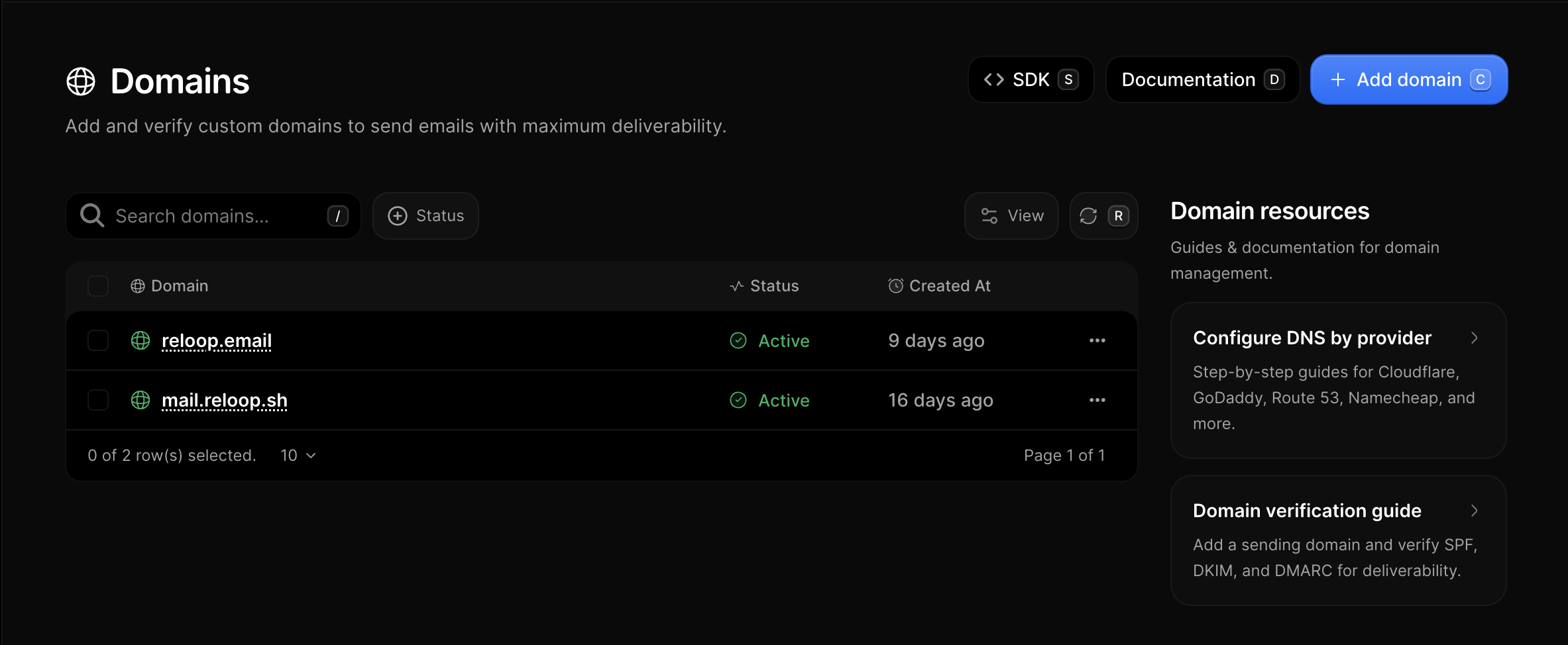
View all domains
The Domains Dashboard lists every domain in your organization with status, search, and filters.
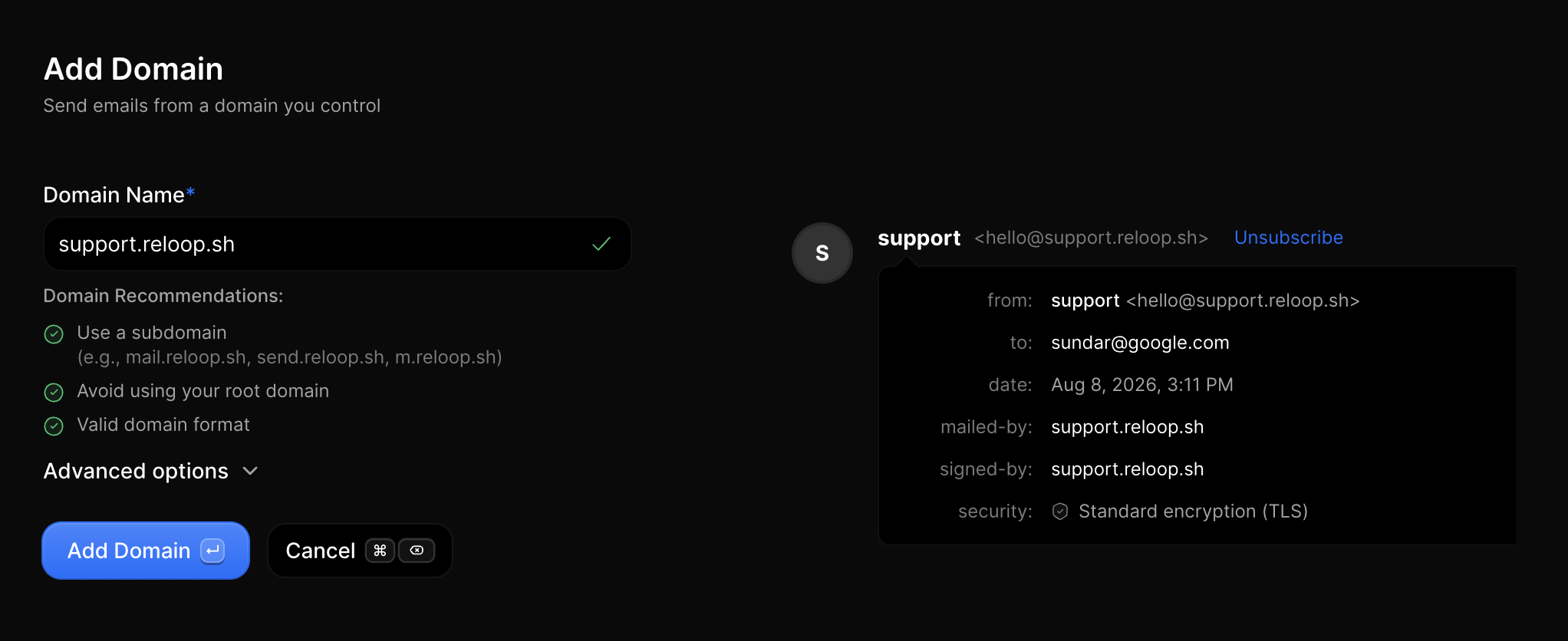
Add a domain
- Go to Domains
- Click Add domain (or press
C) - Enter the hostname (e.g.
acme.comormail.acme.com) - Optionally open Advanced options to set click/open tracking defaults
- Click Add Domain
Reloop creates the domain in pending status and opens the DNS setup page with the records you need to publish. Email Sending, Email Receiving, and click/open tracking start on by default. Turn Receiving off before publishing DNS if this hostname must keep another inbox.
Configure DNS
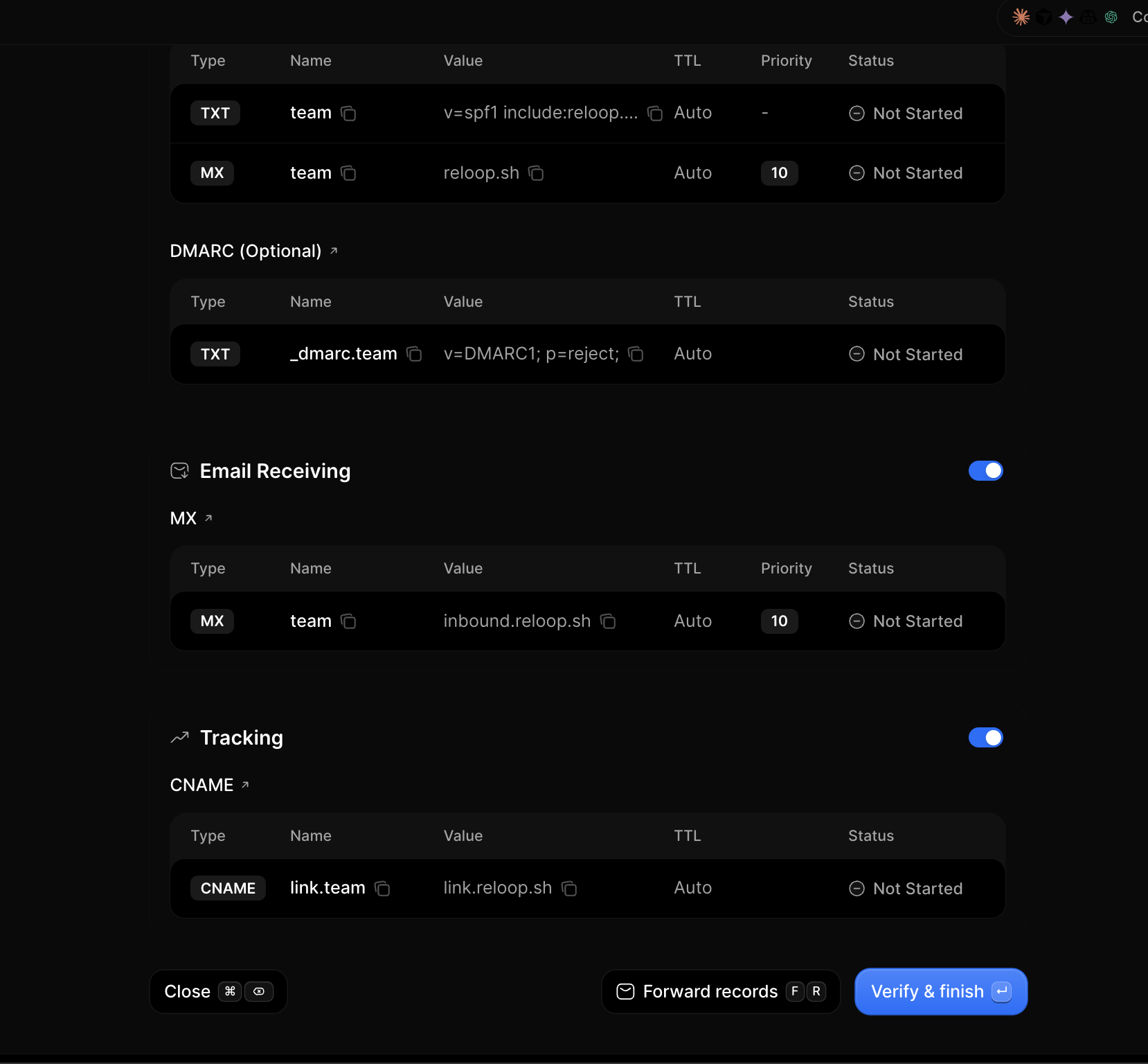
After you add a domain, Reloop shows the required DNS records (SPF, DKIM, DMARC, and receiving/tracking rows based on your toggles). Sending does not require MX.
Auto-populate (when available; today Cloudflare, Vercel, Domain Chief, and NameSilo):
- On the setup or domain page, click Auto populate
- Approve Reloop’s Domain Connect template at your DNS host
- Return to Reloop and verify
Manual setup:
- Copy each record from the Reloop DNS table
- Add them at the host that manages your nameservers
- Merge SPF if you already have an SPF TXT; do not create a second SPF record
Deep dives: Auto-populate · Manual setup · DNS records explained · Provider guides
Verify a domain
- Open the domain from Domains (or stay on the post-add setup page)
- Click Verify & finish on setup, or Verify Domain on the detail page (menu → Re-verify DNS)
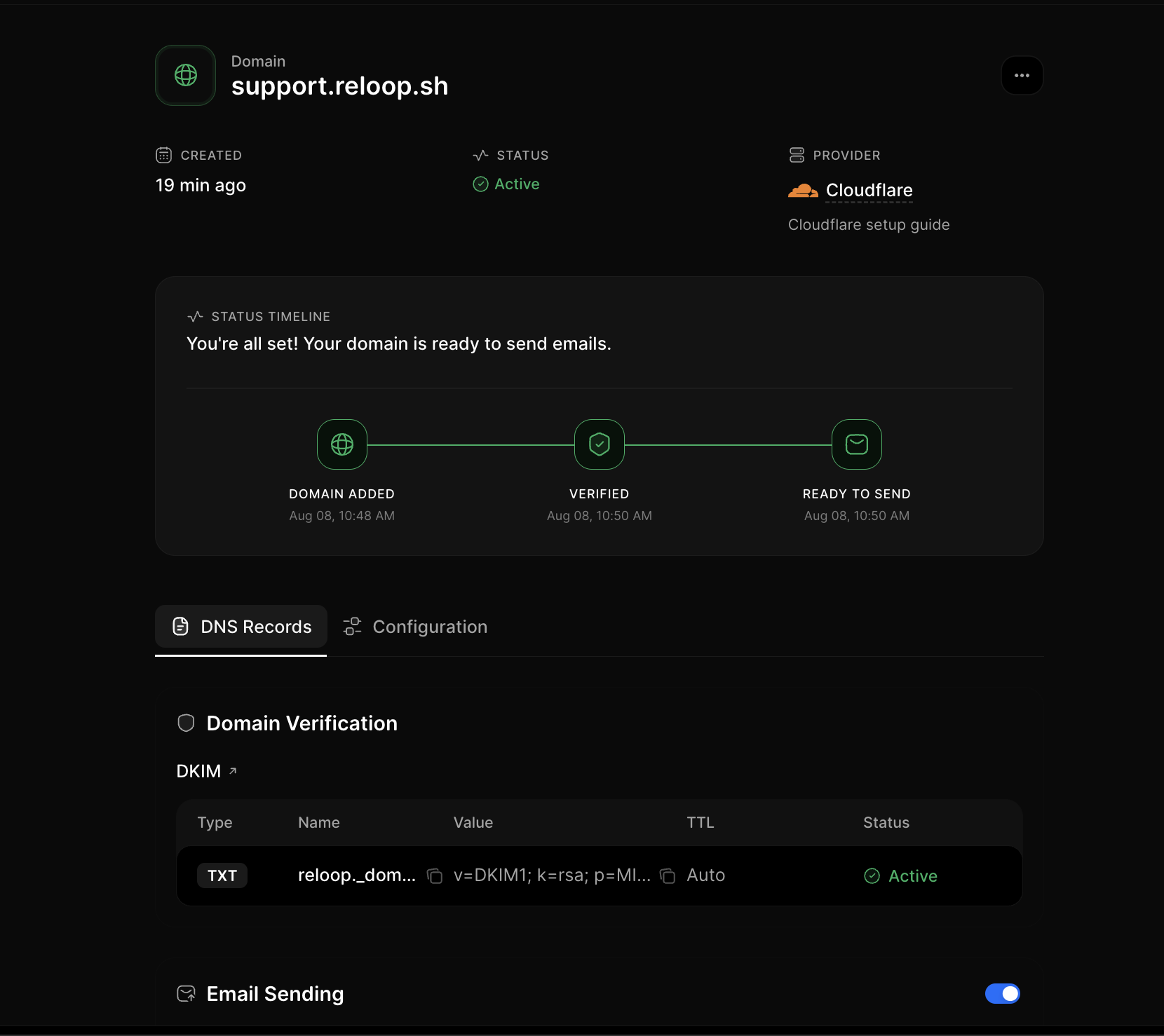
- Wait for status to move through
pending→verifying→active
Configure sending, receiving, and tracking
On the domain detail page you can toggle capabilities without deleting the domain:
- Open Domains and click a domain
- On the DNS Records tab, toggle Email Sending, Email Receiving, or Tracking as needed
- Open the Configuration tab for click tracking, open tracking, and TLS (
opportunisticorenforced)
Forward DNS records
Share the Reloop DNS table with a teammate who manages DNS:
- Open the domain detail or setup page
- Click Forward Records (or use the row/header menu)
- Enter the recipient email and send
Delete a domain
- Open Domains
- Click the row menu (···) → Delete Domain (or open the domain and use the header menu)
- Type the confirmation text and confirm permanent removal
You can also select multiple domains on the list and delete them in bulk.
FAQ
Related
Connect a domain
Full DNS setup guide for beginners and experts.
Emails
Send after your domain is active.
API Keys
Authenticate REST and SMTP with API keys.
API reference
Create Domain
Add a domain and get DNS records.
List Domains
Paginated list of organization domains.
Retrieve Domain
Get a domain by ID.
Update Domain
Toggle sending, receiving, tracking, or TLS.
Verify Domain
Check public DNS against Reloop records.
Forward DNS Records
Email DNS records to a teammate.
Delete Domain
Permanently remove a domain.
Was this page helpful?