Contact Properties

Learn how Reloop contact properties (string or number fields) power email personalization and targeting — create, update, and delete them from the dashboard or API.

What are contact properties?

Properties are custom fields you add to a contact — a bit of context that helps you know who they are and what they need. Types: String or Number, with an optional default used in templates when a contact has no value.

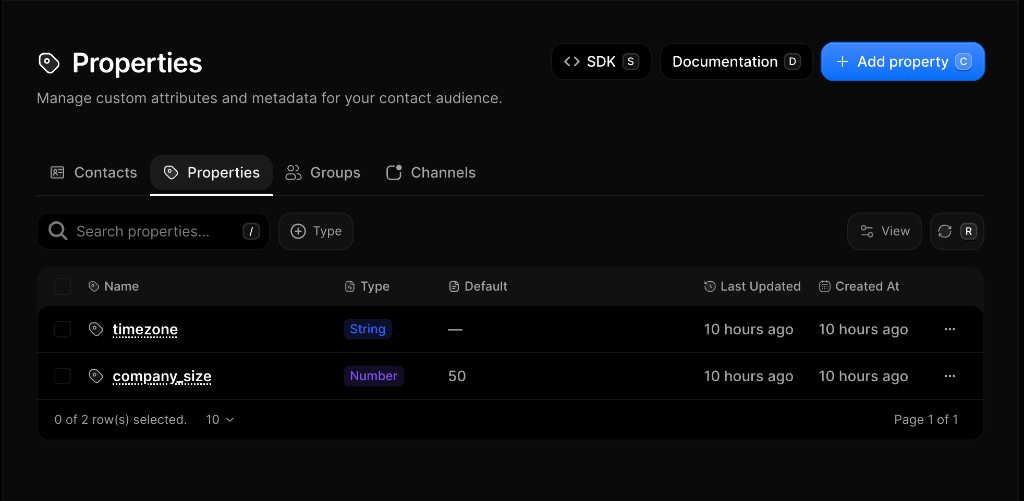
Open the UI: Contacts → Properties

Contact properties in the Reloop dashboard

Why use properties?

Say you run a SaaS product. You store company and plan_tier on every contact.

Now your welcome email can say:

Hi from Acme, thanks for trying our Pro plan!

— automatically, for every contact, using their own company name and plan. And when you want to email only people on a free trial, you can target just the contacts where plan_tier is "Trial". No manual list-building, no spreadsheet — the data lives right on the contact.


How do I create a contact property?

Create a contact property

  1. Go to Contacts → Properties
  2. Add Property
  3. Name (letters, numbers, underscores), type String or Number, optional default
  4. Save

How do I list or update a property?

Browse the schema or change a property’s optional default — row menu or API. Name and type are fixed after create.

List and update contact properties

  1. Open Contacts → Properties
  2. Review the list — or row ···Edit to change the default value
  3. Save

How do I set values on a contact?

The Properties page defines the schema. Values live on each contact — set them when you edit a contact in the dashboard or via the update contact API.

  1. Open Contacts
  2. Row ···Edit (or open the contact)
  3. Fill custom property fields → Save

How do I delete a contact property?

Deleting removes the schema. Contacts keep raw values, but the field is no longer managed globally.

Delete a contact property

  1. Open Contacts → Properties
  2. Row ···Delete
  3. Confirm

FAQ

What are contact properties in Reloop?

Properties are small details you add to a contact — custom String or Number fields with an optional default. Use them for personalization and targeting (for example company or plan_tier).

What property types does Reloop support?

String (free-form text) and Number (integer or decimal), plus an optional fallback when a contact has no value.

What happens when I delete a contact property?

Deleting removes the schema definition. Existing contacts keep raw key-value data, but the field is no longer managed globally.

How do I name a contact property?

Use letters, numbers, and underscores only. Names must start with a letter or underscore. Spaces become underscores. When setting values on a contact, names must be lowercase (a-z, 0-9, underscores).

Can I rename a property without losing data?

No. After you create a property, you can only change its default (fallback) value — name and type stay fixed. To use a different name, create a new property and set values on contacts under that name.

Can two properties have the same name but different casing (for example Company vs company)?

No. Names are unique per organization by exact name. When setting values on a contact, names must be lowercase (a-z, 0-9, underscores) — don’t rely on casing variants as separate fields.

Can a property have different values for different contacts?

Yes. The Properties page defines the shared field (schema). Each contact stores its own value. The optional default is only a fallback when a contact has no value set.

Can I set a property via CSV import?

No. There is no CSV import for custom property values today. Set values when you edit a contact in the dashboard or via the Contacts update API. Export CSV from the contacts list includes email, status, and created-at only.

Is there a limit to how many properties I can create?

No fixed maximum per organization. Create is rate-limited (30 requests per 60 seconds per organization). See Usage Limits.


API reference

Was this page helpful?

Edit this page