Groups
Segment your contacts into target groups for focused messaging campaigns.
Groups allow you to bundle subscribers into lists or segments (e.g., "VIP Customers", "Beta Testers", "New Registrants"). Grouping contacts makes it easy to target specific subsets of your list when sending emails.
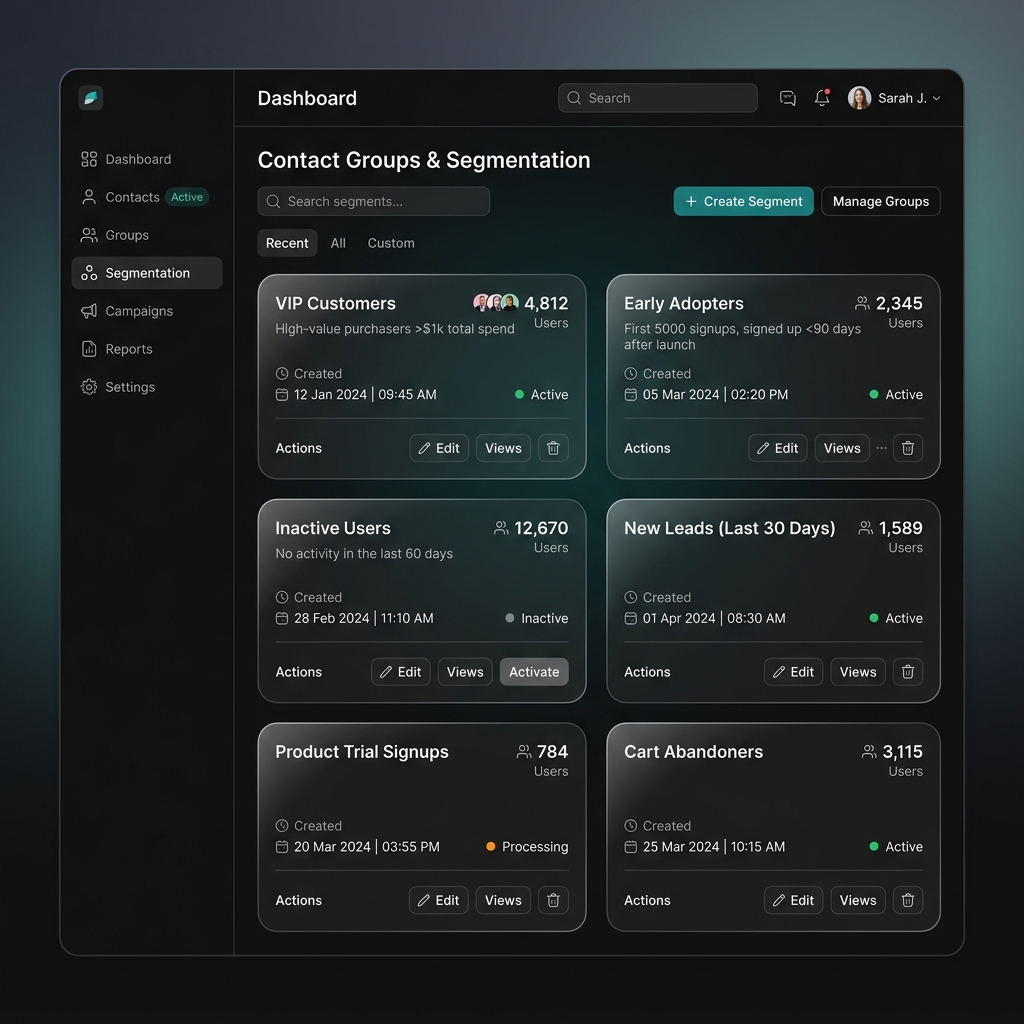
Dashboard Usage
Managing contact groups is fully supported in the dashboard.
1. Creating a Group
- Navigate to Contacts in the sidebar and select the Groups tab.
- Click the Create Group button.
- Enter a friendly Group Name (e.g.,
VIP Customers). - Click Create Group to save.
2. Adding Contacts to a Group
Once a group is created:
- Click on the group name in the Groups list to open the group detail view.
- Click Add Contacts to Group (or similar member add action).
- Use the search input to filter contacts in your organization.
- Select the check boxes next to the contacts you wish to add (or toggle Select All matching search).
- Click Add Contacts to bulk-add them to the group.
3. Removing Contacts from a Group
- In the group detail page, locate the contact in the member list.
- Click the options menu next to the contact.
- Click Remove from Group and confirm.
API Reference
Use the Groups API to create segments, list group members, and enroll contacts.
Was this page helpful?