Introduction
Manage customer lists, subscriber status, custom traits, and suppression lists in Reloop.
Reloop Contacts enables you to build, manage, and organize your subscriber and customer list. By storing contact information, tracking their subscription status, and appending custom properties, you can design highly personalized and targeted communication workflows.
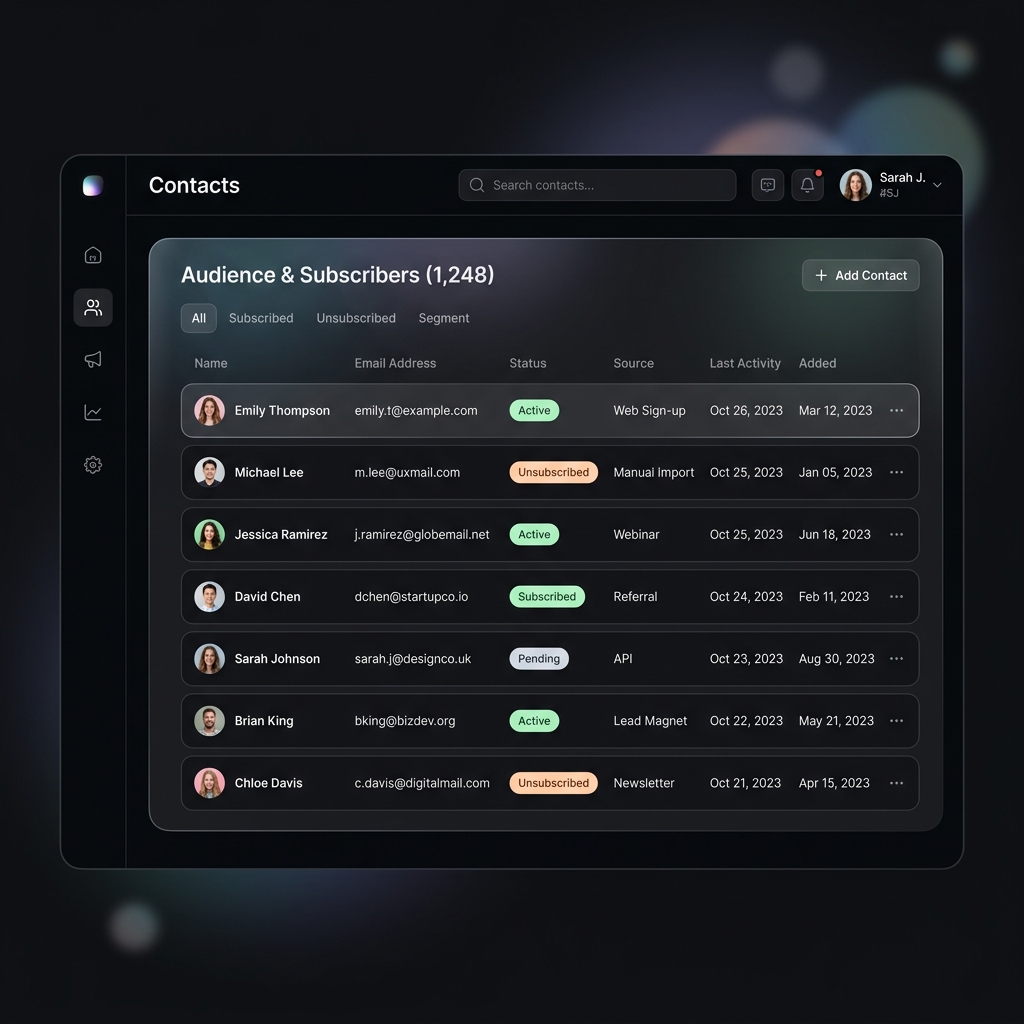
Dashboard Usage
The Reloop Dashboard provides a visual and intuitive interface to manage your contact database.
1. Navigating Contacts
In the left sidebar of the dashboard, expand the Contacts accordion. Click on the main navigation link to view your Contact table. Here, you can search for contacts by name or email, filter them by status, and view their metadata.
2. Adding Contacts Manually
To add a single contact:
- Click the Add Contact button at the top-right of the Contacts list view.
- In the modal, fill in the required fields:
- Email: The unique email address for the contact.
- First Name & Last Name (Optional): Details to personalize your outbound communications.
- Status: Set their subscription state to Subscribed or Unsubscribed.
- Optionally choose any Groups or Channels to enroll the contact in directly.
- Click Add Contact to save.
3. Bulk Importing via CSV
To import multiple contacts at once:
- Navigate to Contacts and click the Bulk Import button.
- Upload a standard CSV file. The columns should match your contact schema (e.g.,
email,firstName,lastName). - Map the fields in your CSV to the existing properties in Reloop.
- Run the import to populate your database instantly.
API Reference
Use the Contacts API to perform core operations on contact profiles.
Was this page helpful?